DjVu to Word: how to get editable text, not pictures
Updated October 22, 20266 min read
You converted a DjVu book to Word and got a document full of page pictures you can't edit. Whether you get real text depends on one thing: the book's hidden text layer. Here's how to check for it, convert the book to an editable .docx, and what to do when a scan has no text at all.
Step 1
Check that the book has a text layer
Open the book in our free online DjVu viewer: drop the file on the page, or click Open a DjVu file. Type a word you can see on a page into the search box. If it's found and highlighted, the book has a text layer and will convert to editable text. If the viewer says the book has no text layer, its pages are only pictures, so the text has to be recognised first: see “Scans without a text layer” below. You can also try selecting a line on the page: text you can select is text you can convert.
Step 2
Convert it with DjVu to Word
Open our free DjVu to Word converter and drop one or more .djvu or .djv files on the page; Word is already selected as the format. The book's text is read and put back into paragraphs right in your browser, so nothing is uploaded, and long books take only a few seconds. Click Download to save the .docx. There's no sign-up, no watermark and no limit on file size, and it works the same on a computer, iPhone, iPad or Android phone.
Step 3
Open the document and tidy it up
The .docx opens in Microsoft Word, Google Docs, Pages and LibreOffice. A few minutes of tidying makes it ready to use:
- Jump between chapters: the book's chapters are Word headings, so they appear in the Navigation pane (View › Navigation Pane in Word for Windows).
- Fix repeated misreadings with Find and Replace (Ctrl+H in Word for Windows). Old scans often misread the same letters in the same way, such as “rn” for “m”.
- Run the spelling check: recognition mistakes usually show up as misspelled words.
- Check quotes and numbers against the page in the viewer before you rely on them.
- Add pictures back where you need them: save the page with DjVu to PNG, crop the diagram and insert it.
Why some DjVu to Word conversions are just pictures
A DjVu file stores each page as a picture of the printed page. Many books also carry a hidden text layer underneath: the words recognised (OCR) when the book was scanned, placed where they appear on the page. That layer is what you can search, copy and turn into a document. Some converters skip it and simply place a picture of each page in the Word file, which looks like the book but can't be edited. Others find no text layer because the book never had one. Our converter reads the text layer itself, so you get words, not pictures. More about the format in what is a DjVu file.
What the Word document keeps, and what it leaves out
The document is made for editing, not for looking like the printed page:
- Kept: paragraphs. Lines are joined back into paragraphs, and words split by a hyphen at the end of a line are put back together.
- Kept: chapters. The book's table of contents becomes Word headings. Without one, chapter headings found in the text, such as “CHAPTER II” or “Part One”, are used.
- Kept: any language. Cyrillic, Greek, Chinese and other scripts come out correctly, with old spelling kept as printed.
- Left out: running headers and page numbers, so they don't interrupt the text.
- Left out: pictures, tables, the page layout and the original fonts. They stay in the DjVu. To keep every page exactly as printed, convert to PDF instead.
- As good as the scan: a clean modern scan converts almost word for word; an old or faded one keeps its recognition mistakes.
Scans without a text layer
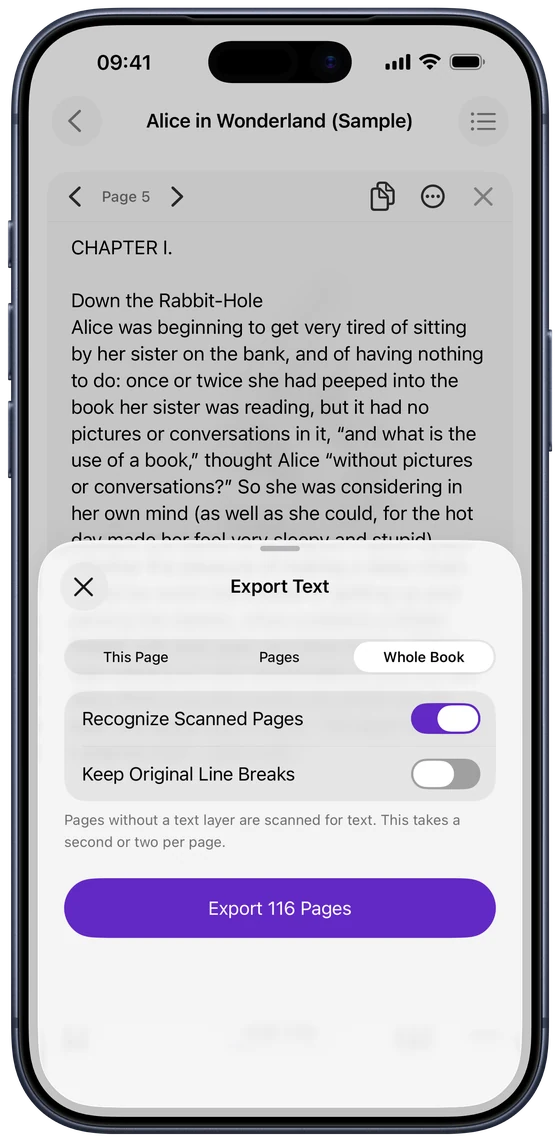
When a book is only pictures of pages, the text has to be recognised from the images first. Our web tools don't do that, so they have no text to put in a document. On iPhone and iPad, DjVu Reader recognises the text on scanned pages on your device, with nothing uploaded:
- One page: tap ••• › Extract Text, then Copy All, and paste it into Word or Pages. This is free.
- A whole book or a range of pages: in the Extract Text panel, tap ••• › Export as Text File…, keep Recognize Scanned Pages on, and save the .txt file (Pro). Open it in Word and save it as a .docx.
- Better text: set the book's language in Settings › Reader Settings › Read Aloud Language, which recognition follows.
When Word isn't the right format
Pick the format for what you'll do with the text. For the plain words alone, DjVu to TXT gives one text file. For reading on an e-reader or phone, DjVu to EPUB or FB2 gives text that fits any screen. To keep the pages as they look, with searchable text, use DjVu to PDF. And to quote a few lines, copying them from the online DjVu viewer is quickest.
Common questions
- Why is my DjVu to Word conversion just images?
- Either the converter placed a picture of each page in the document instead of reading the text, or the book has no text layer. Check the book in our online DjVu viewer: if search finds words, our DjVu to Word converter will give you editable text.
- Can I convert DjVu to Word with OCR?
- Our DjVu to Word converter uses the text recognised when the book was scanned, and doesn't run OCR itself. For scans without a text layer, DjVu Reader on iPhone and iPad recognises the text on your device: copy a page for free, or export the whole book as a text file (Pro) and open it in Word.
- Is DjVu to DOCX different from DjVu to Word?
- No. DOCX is the file format Word uses, so a DjVu to Word converter makes a .docx file. It also opens in Google Docs, Pages and LibreOffice.
- Will the Word document look like the printed book?
- No: it holds the book's text, paragraphs and chapters in a clean layout you can edit, without the pictures, tables or original fonts. For a copy that looks like the book, convert to PDF.
- Is my book uploaded when I convert it?
- No. The converter runs in your browser, so the book never leaves your device.
Open your first DjVu book.
Free on the App Store for iPhone and iPad.