How to make a DjVu book from scans or photos of pages
Updated October 23, 20268 min read
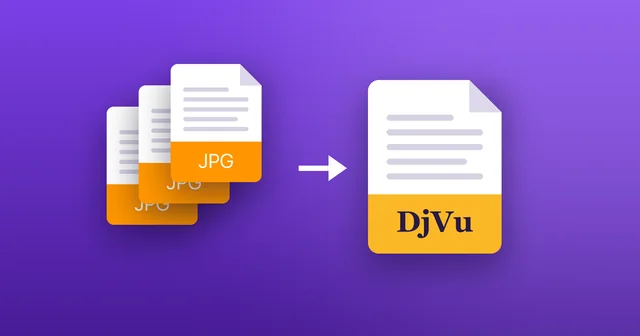
You photographed a textbook page by page, scanned an old Soviet-era book from your grandparents' shelf, or digitised a folder of archive papers. Now you have hundreds of separate pictures. Here's how to turn them into one small DjVu book that opens as a single file, keeps its page order and is easy to send.
Step 1
Scan or photograph the pages
Good pictures make a good book. The converter turns pages of text into compact black and white, and it does that best when the page looks like clean paper with dark print:
- Lay the page flat. Press the book open, or use a sheet of clean glass on top. Curved lines near the spine stay curved in the book.
- Use even light without glare. Daylight from a window or two lamps from the sides work well. Avoid the flash, which leaves a bright spot on glossy paper.
- Keep your hands and phone out of the light. A shadow on the page can turn into a grey or black patch when the page becomes black and white.
- Fill the frame with the page and hold the phone straight above it, at the same distance for every page, so the pages come out the same size.
- On a scanner, 300 dpi in greyscale or colour is a common choice for printed text; small print, formulas and footnotes read better at 400–600 dpi. Save as JPG or PNG: most browsers can't open TIFF.
- Scan only what you're allowed to copy and share: your own papers, public-domain books, or pages for your personal study where the law allows it.
Step 2
Crop and name the pictures in page order
Each picture becomes a page exactly as it is: the converter doesn't crop, straighten or resize your pictures. So crop away the table, your fingers and the opposite page first, in your phone's photo editor or any image editor, and turn sideways photos upright if they need it (photos are turned upright by their camera orientation automatically). Then name the files so they sort in page order, with leading zeros: 001.jpg, 002.jpg … 120.jpg. Without the zeros, 10.jpg sorts before 2.jpg. Yellowed paper from an old book is fine: the converter takes the page's own paper colour as the background.
- Photos from an iPhone are often HEIC. They open in any browser on iPhone and iPad and in Safari on a Mac, but not in most other browsers. To shoot JPG instead, go to Settings › Camera › Formats and choose Most Compatible.
- Phone document scanners, such as the one in the iPhone's Notes app, crop and straighten pages for you and can save them as a PDF. That PDF goes through PDF to DjVu.
Step 3
Add the images to JPG to DjVu
Open JPG to DjVu in Chrome, Edge, Safari or Firefox on a computer, phone or tablet. Drop your pictures on the page or click Choose images. It takes JPG, PNG, WebP, GIF and BMP, and HEIC where the browser can open it. A small preview appears next to each file; a picture the browser can't open is marked so you can remove it. Your images never leave your device, and there's no sign-up or limit beyond your device's memory.
Step 4
Check the order and choose the quality
The book follows the order of the list, and pictures you add later go to the end. The converter doesn't sort by file name, so scroll through the list before you start and use the arrows to move a page up or down; remove any extra shots. Then choose the quality:
- Standard: text pages at up to 400 dpi, pictures at 200 dpi. Small files with readable text; right for most books and notes.
- High: up to 600 dpi for text and 300 dpi for pictures, for fine print, maps and detailed illustrations, at the cost of larger files.
Step 5
Make the DjVu and download it
Click Make DjVu and watch the page count go up, then click Download DjVu. The converter looks at every picture: pages of text on paper become black and white at full resolution, which keeps letters readable at any zoom, while pages with photos, drawings or colour stay in colour. A page of text that weighs a few megabytes as a photo often takes a few dozen kilobytes as DjVu, so a whole textbook can become small enough to send by email or in a messenger. Open the result in our free online DjVu viewer to check it.
Join parts with Merge DjVu
With a long book, it's easier to work chapter by chapter, or one session of scanning at a time. Make a DjVu for each part, then add the parts to Merge DjVu, put them in order and click Merge. Pages are copied as they are, with no loss of quality, and each file becomes a chapter in the book's table of contents, named after the file. So name the parts the way you want the chapters to read, such as Chapter 1 – Mechanics.djvu. The same way, you can add newly photographed pages to an existing DjVu book. To take pages out again, see how to extract, split and merge DjVu pages.
Scanner made a PDF? Use PDF to DjVu
Many scanners, copiers and scanning apps save a stack of pages as one PDF. Put that PDF through PDF to DjVu: scanned PDFs often become several times smaller. If the scanning software already recognised the text and the PDF has a text layer, that text goes into the DjVu, so the book stays searchable. Several PDFs can be converted one after another and then joined with Merge DjVu.
Your new book has no searchable text
Pictures carry no text, and our converters don't run text recognition (OCR). The DjVu you make from photos is a book of page images: perfectly readable, but search won't find words in it, you can't select text in a regular viewer, and converting it to Word, EPUB, FB2 or TXT gives no text. If the book will mainly be read, that's fine. If you need to search it or copy from it, read it in an app that recognises text on the pages, as below. If it gets heavy, Compress DjVu makes it smaller.
Read, search and copy it on iPhone and iPad
DjVu Reader for iPhone and iPad opens your new book from Files, Safari or Mail, or over Wi‑Fi Transfer from a computer. It recognises the text on scanned pages right on your device. Extract Text shows a page's text to copy, for free. Searching scanned pages, exporting the book's text and Read Aloud are part of Pro. Here's how searching inside scanned books works. The app reads DjVu books; it doesn't make them, so create the book in your browser first.
Send it or put it on an e-reader
A finished DjVu is one file, so it's easy to share: attach it to an email, send it in a messenger, or keep it in cloud storage. Whoever receives it can open it in the online DjVu viewer on any device, without installing anything. Many e-readers, including most PocketBook models, open DjVu files directly; check your model's list of formats, or see how to read DjVu on an e-reader. Someone who needs a PDF can get one with DjVu to PDF.
Common questions
- How do I create a DjVu file from images?
- Add the images to our free JPG to DjVu converter, put them in order with the arrows, click Make DjVu and download the book. Each image becomes one page. It runs in your browser, so nothing is uploaded.
- Can I make a DjVu from phone photos on my phone?
- Yes. Open JPG to DjVu in your phone's browser, tap Choose images and pick the photos of your pages. iPhone HEIC photos open in any browser on iPhone and iPad. For books of hundreds of pages, a computer is faster.
- Will my DjVu be searchable?
- Not on its own: the converter doesn't run OCR, so the pages are pictures of text. DjVu Reader on iPhone and iPad recognises text on scanned pages on your device; copying a page's text is free, and searching scanned pages is part of Pro. If your scanner made a PDF with a text layer, PDF to DjVu keeps that text.
- What resolution should I scan a book at for DjVu?
- 300 dpi is a common choice for ordinary printed text. Use 400–600 dpi for small print, formulas or worn pages. Choose High in the converter to keep up to 600 dpi on text pages; Standard keeps up to 400 dpi, which suits most books.
- Why are my pages in the wrong order?
- The book follows the order of the list in the converter, not the file names. Move pages with the arrows before you click Make DjVu. Naming files 001, 002, 003… helps them arrive in order when you select them together.
Open your first DjVu book.
Free on the App Store for iPhone and iPad.