How to read DjVu books on a Kindle
Updated October 22, 20265 min read
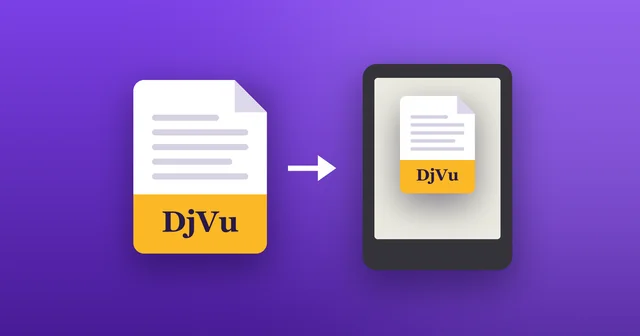
You have a book in DjVu and a Kindle to read it on, but the Kindle won't take the file. Here's how to get a DjVu book onto a Kindle Paperwhite, Scribe or any other Kindle in four steps, and which format to choose.
Step 1
Check whether the book has a text layer
Open the DjVu file in our free online DjVu viewer and search for a word you can see on a page. If search finds it, the book has a hidden text layer: the text recognised when it was scanned, which an EPUB is made from. If the viewer says the book has no text layer, its pages are only pictures, and PDF is the format to use. Nothing is uploaded: the book opens in your browser.
Step 2
Convert the DjVu book to EPUB or PDF
Both converters are free, run in your browser on any computer, phone or tablet, and don't upload the book:
- DjVu to EPUB: the book's text, joined back into paragraphs, with its chapters in the contents. On the Kindle you can change the font and text size, and the text reflows to fit.
- DjVu to PDF: every page as it looks in the DjVu, with the text layer kept as searchable text and the contents as bookmarks. Choose Standard quality for the smallest file.
Step 3
Send the file with Send to Kindle
Send to Kindle is Amazon's free service for putting your own documents on a Kindle. It accepts both EPUB and PDF, in several ways:
- On the web: open Send to Kindle on Amazon's site, sign in and drop the file on the page. It takes files up to 200 MB.
- From the Kindle app on iPhone, iPad or Android: share the file to the Kindle app.
- By email: attach the file to an email to your Kindle's Send to Kindle address, found under Manage Your Content and Devices on Amazon. Send it from an address you've added to the approved list there.
- From a computer: Amazon's Send to Kindle app for Windows and Mac.
Step 4
Open the book on your Kindle
With your Kindle connected to Wi‑Fi, the book appears in your library after a short while. An EPUB is converted for your Kindle along the way, so you can change the font, text size and margins as in any Kindle book. A PDF opens page by page, as printed. Amazon's current list of formats and size limits is on its Send to Kindle help page.
Does Kindle support DjVu?
No. DjVu isn't one of the formats Kindle e-readers open, and Send to Kindle doesn't accept it either: Amazon's list includes EPUB, PDF, plain text, HTML and pictures, but not DjVu. That's why converting is the only practical way. Old forum posts suggest installing unofficial software on a modified Kindle; that's risky, can break the device, and isn't needed now that conversion takes a minute.
EPUB or PDF: which is better for your Kindle?
It depends on the screen and on the book:
- Kindle Paperwhite and the basic Kindle: choose EPUB when the book has a text layer. A whole printed page shrunk to a small screen is hard to read, while EPUB text is as large as you like.
- Kindle Scribe: PDF works well, because a printed page fits its large screen at a readable size. On a PDF sent with Send to Kindle, you can also write on the pages with the pen.
- Maths, formulas, tables and illustrations: choose PDF on any Kindle. An EPUB made from a scan holds the text only, so pictures, diagrams and formulas don't come along.
- Old or faded scans: choose PDF. The EPUB is only as good as the scan's text recognition, and misread letters show more in reflowed text than on the page image.
Scans without a text layer
A scan with no text layer still converts to PDF, and the pages read on the Kindle as they would on paper. It can't become an EPUB, because there's no text to reflow. To get the text anyway, open the book in DjVu Reader on iPhone or iPad: it recognises the text on scanned pages on your device, with nothing uploaded. In the Extract Text panel, Export as Text File… (Pro) saves the whole book as a .txt file, and Send to Kindle accepts plain text files too. Or simply read the DjVu itself in DjVu Reader, with the pages as printed. More in DjVu to EPUB: why the e-book comes out empty.
Common questions
- Can I send a DjVu file to my Kindle directly?
- No. Send to Kindle doesn't accept DjVu files, and Kindles can't open them. Convert the book to EPUB or PDF first, then send that.
- Can I convert DjVu to MOBI or AZW3?
- You don't need to. MOBI isn't on Amazon's list of Send to Kindle formats; send an EPUB instead, and Send to Kindle converts it for your Kindle.
- The PDF is too large to send. What can I do?
- Convert with Standard quality, which keeps text at full resolution and files small, and send it through Send to Kindle on the web, which takes files up to 200 MB. For a very long book, cut it into parts with Split DjVu and convert each part.
- Why is my EPUB missing the pictures?
- An EPUB made from a scan holds the book's text, paragraphs and chapters. Pictures, diagrams and formulas stay in the page images, so for illustrated books send a PDF instead.
- Can I copy the PDF to my Kindle with a USB cable?
- Yes, Kindles open PDFs copied to their Documents folder. An EPUB, though, must go through Send to Kindle, which converts it for your device. On a Kindle Scribe, Send to Kindle is also the surest way to get a PDF you can write on.
Open your first DjVu book.
Free on the App Store for iPhone and iPad.