How to print a DjVu file on any device
Updated October 22, 20266 min read
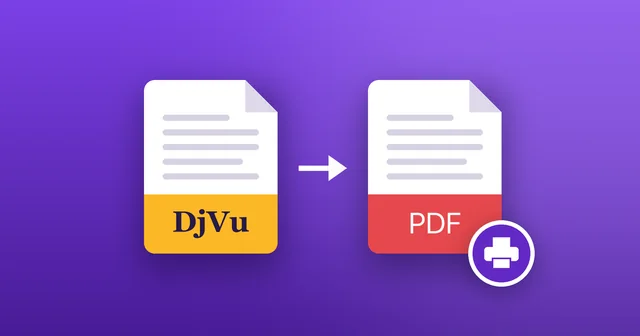
Most printers and print dialogs don't know what a .djvu file is. The simplest way to print a DjVu book is to turn it into a PDF first, which takes a few seconds in your browser, and then print the PDF like any other document.
Step 1
Convert the DjVu file to PDF
Open our free DjVu to PDF converter in Chrome, Edge, Safari or Firefox, on a computer, phone or tablet. Drop the .djvu or .djv file on the page, or click Choose files, and pick a quality, then click Download PDF when it's ready. The book is converted on your own device: nothing is uploaded, and there's no sign-up or watermark.
- Standard: text keeps its full resolution and the file stays small. This is the right choice for most books, and for anything that is mostly text.
- High: pictures and photos keep more detail, at the cost of a larger file. Choose it for illustrated, colour or photo-heavy books.
Step 2
Open the PDF and choose Print
PDF opens almost everywhere, so you can print it from the reader you already have:
- Windows: open the PDF (it usually opens in Microsoft Edge) and press Ctrl+P, or choose Print from the ••• menu.
- Mac: open the PDF in Preview and choose File › Print, or press Command+P.
- iPhone and iPad: open the PDF in the Files app, tap the Share button and choose Print. Tap the printer line at the top to pick an AirPrint printer on the same Wi‑Fi network.
- Android: open the PDF and look for Print in the app's menu or Share menu, then pick your printer.
Step 3
Choose the pages, size and sides
Before you press Print, check a few settings. Their names vary a little from one device to another:
- Pages: print the whole book, or only some pages. Edge on Windows takes a custom list such as 1-5, 8; Mac and iPhone let you choose a range of pages.
- Fit to page: scanned pages are rarely exactly A4 or Letter. Choose Fit to printable area in Edge, or Scale to Fit in Preview on Mac, so nothing is cut off at the edges.
- Both sides: if your printer prints on both sides, turn on two-sided printing to halve the paper. If you don't see the option, look under More settings or in your printer's own settings.
- Black and white: old scans often have yellowed paper. Printing in black and white can save colour ink and give a cleaner page.
Print only some pages of a large book
A book of several hundred pages makes a large PDF, and converting all of it just to print one chapter takes longer than it needs to, especially on a phone. Take the pages out first instead:
- Open the book in our free online DjVu viewer to find the pages you need. Use the page numbers the viewer shows: the numbers printed on the book's pages often differ, because covers and front matter count too.
- In Split DjVu, type the pages, such as 12-30 or 1-5, 8, 12-20, and download the new DjVu file.
- Convert that smaller file to PDF and print it as above. More on choosing pages in how to extract, split and merge DjVu pages.
Standard or High: which prints better?
For pages of text, Standard is enough. The letters keep the scan's full resolution in both settings, so a printed page of text looks the same either way, and the file is smaller and quicker to send to the printer. High makes a difference on pages with photos, maps, paintings or fine drawings, where the extra detail in the pictures shows on paper. If one page in particular matters, such as a map or a plate, you can also save it as a picture at the scan's full resolution with DjVu to PNG on High, on a computer, and print that picture.
If the printout doesn't look right
Most problems come from the print settings, not the file:
- Edges are cut off: turn on Fit to printable area or Scale to Fit, or set the margins to the default.
- Pages come out tiny or huge: check the scale. It should be set to fit, or to 100%.
- Grey or yellow background: that's the colour of the scanned paper. Printing in black and white usually gives a whiter page.
- The phone runs out of memory converting: a very large colour book can be too much for a phone's browser. Split it into parts, or convert it on a computer.
- The file won't open in the converter: it may be damaged or still inside a ZIP. See DjVu file won't open?
Reading instead of printing on iPhone and iPad
DjVu Reader for iPhone and iPad doesn't print, so to print from your phone, convert the book in Safari as described above. If you print to read more comfortably, though, the app may save you the paper: it opens DjVu files directly, with page themes for faded scans, two-page spreads on iPad, search, and Read Aloud (Pro). Here's how to open DjVu files on iPhone.
Common questions
- Can I print a DjVu file without converting it to PDF?
- Some desktop DjVu viewers have a Print command of their own. If yours doesn't, or you're on a phone, converting to PDF is the most reliable way, because every computer, phone and printer can print a PDF. Our DjVu to PDF converter is free and doesn't upload your file.
- How do I print a DjVu file from my iPhone?
- Open our DjVu to PDF converter in Safari, tap Choose files and pick the book. Save the PDF to Files, open it, tap Share and choose Print. You need an AirPrint printer on the same Wi‑Fi network.
- How do I print just a few pages of a DjVu book?
- Either convert the whole book and type the page range in the print dialog, or use Split DjVu to take out the pages first and convert only those. The second way is faster for long books, and easier on a phone.
- Will the printed pages be as clear as the scan?
- Yes. The converter keeps the text at the scan's full resolution, so letters print as clearly as the original scan allows. For pages with photos or illustrations, choose High quality.
- Is printing a DjVu file this way free?
- Yes. Our converters are free, with no sign-up, watermark or limit, and the book never leaves your device.
Open your first DjVu book.
Free on the App Store for iPhone and iPad.