How to listen to a DjVu book: text-to-speech for scanned books
Updated October 15, 20263 min read
Most text-to-speech apps need real text, but most DjVu books are scans: pictures of pages. Here's how to have them read aloud anyway, on iPhone and iPad.
Step 1
Open your book
Open the DjVu book in DjVu Reader and go to the page where you want to start. Read Aloud always begins from the page, or two-page spread, that's on screen. Don't have the app or the book yet? See how to open DjVu files on iPhone.
Step 2
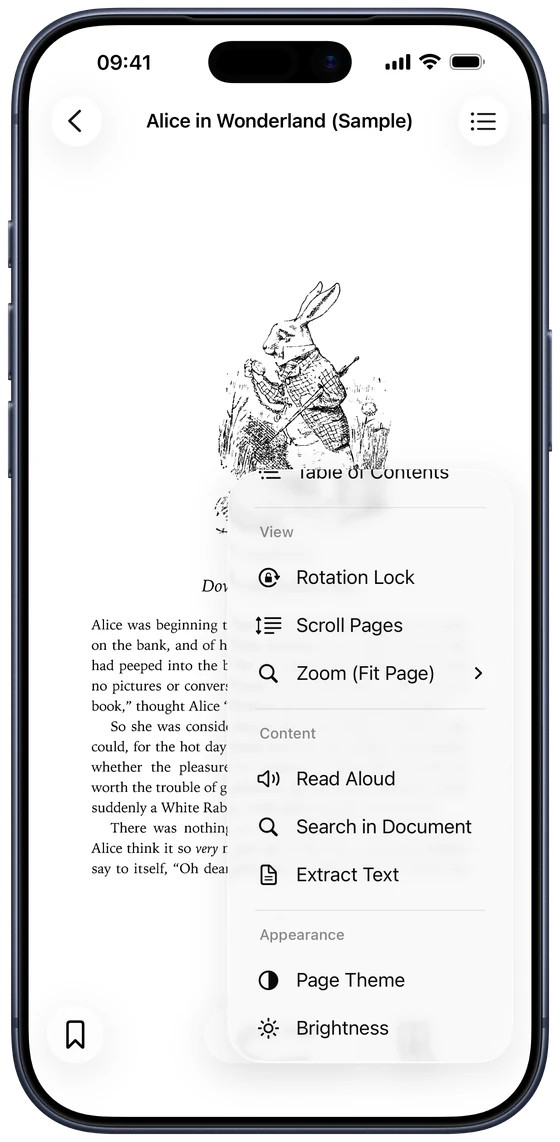
Tap ••• and choose Read Aloud
Tap ••• at the bottom of the reader and choose Read Aloud in the Content section. Reading starts right away; tap the same item again, now called Stop Reading, to stop.
Step 3
Set the speed and voice
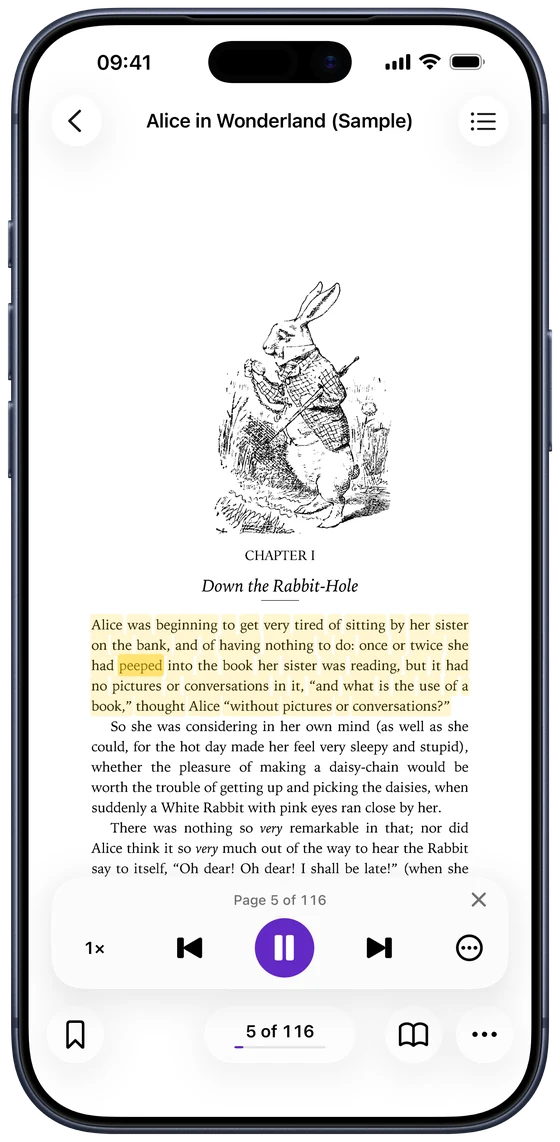
A player appears at the bottom of the page:
- Speed: from 0.75× to 2×. Your choice is remembered for every book.
- Previous and Next move a page back or forward; Play/Pause stops and resumes.
- ••• in the player: Voice (any voice installed on your device), Sleep Timer, and Highlight While Reading.
How it reads scanned pages
If a page has a text layer, Read Aloud reads it. If it's a plain scan, the app first recognises the text on the page image, on your device, with Apple's text recognition. Pages with no text at all, such as illustrations, are skipped. Because recognition isn't perfect, very faded or handwritten pages may be read with mistakes.
Listen like an audiobook
Read Aloud is made for longer listening:
- Keeps going: it turns pages by itself until the end of the book.
- Lock screen and Control Center: it keeps playing with the screen off, and your headphone buttons pause it or turn the page.
- Sleep Timer: stop after 15, 30 or 45 minutes, an hour, or at the end of the chapter.
- Highlighting: the current sentence and word are highlighted on the page, so you can follow along.
Choose the language
By default, Read Aloud picks the language from the page text. To set it yourself, open Settings › Reader Settings › Read Aloud Language. For more natural voices, download enhanced voices in your iPhone's Settings › Accessibility › Spoken Content.
Common questions
- Can I listen to a scanned DjVu book with no text layer?
- Yes. DjVu Reader recognises the text on each page image first, then reads it aloud.
- Does Read Aloud work offline?
- Yes. Text recognition and the voices run on your device, so you don't need an internet connection.
- Is Read Aloud free?
- Read Aloud is part of DjVu Reader Pro. Reading, Extract Text and search in books with a text layer are free.
- Which languages can it read?
- Any language your iPhone has a voice for. Choose Automatic or pick a language, such as English, Russian, Ukrainian, Chinese or Polish, in Settings › Reader Settings › Read Aloud Language.
Open your first DjVu book.
Free on the App Store for iPhone and iPad.