How to read scanned books comfortably on iPad
Updated October 15, 20262 min read
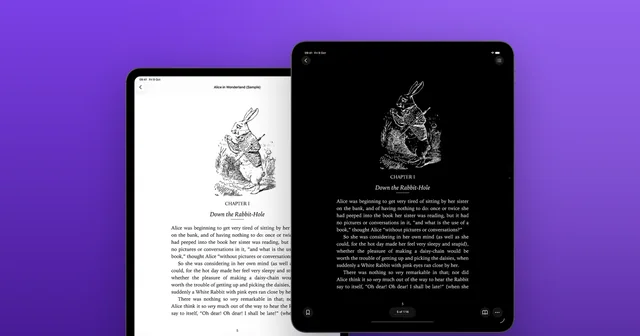
Scanned books can be hard on the eyes: faded paper, small print, yellowed pages. These settings in DjVu Reader make them far easier to read on iPad.
Fill the screen with the page
Tap ••• › View and choose Fit Page to see the whole page, or Fit Width to make the text as large as possible. Pinch to zoom into small print or footnotes.
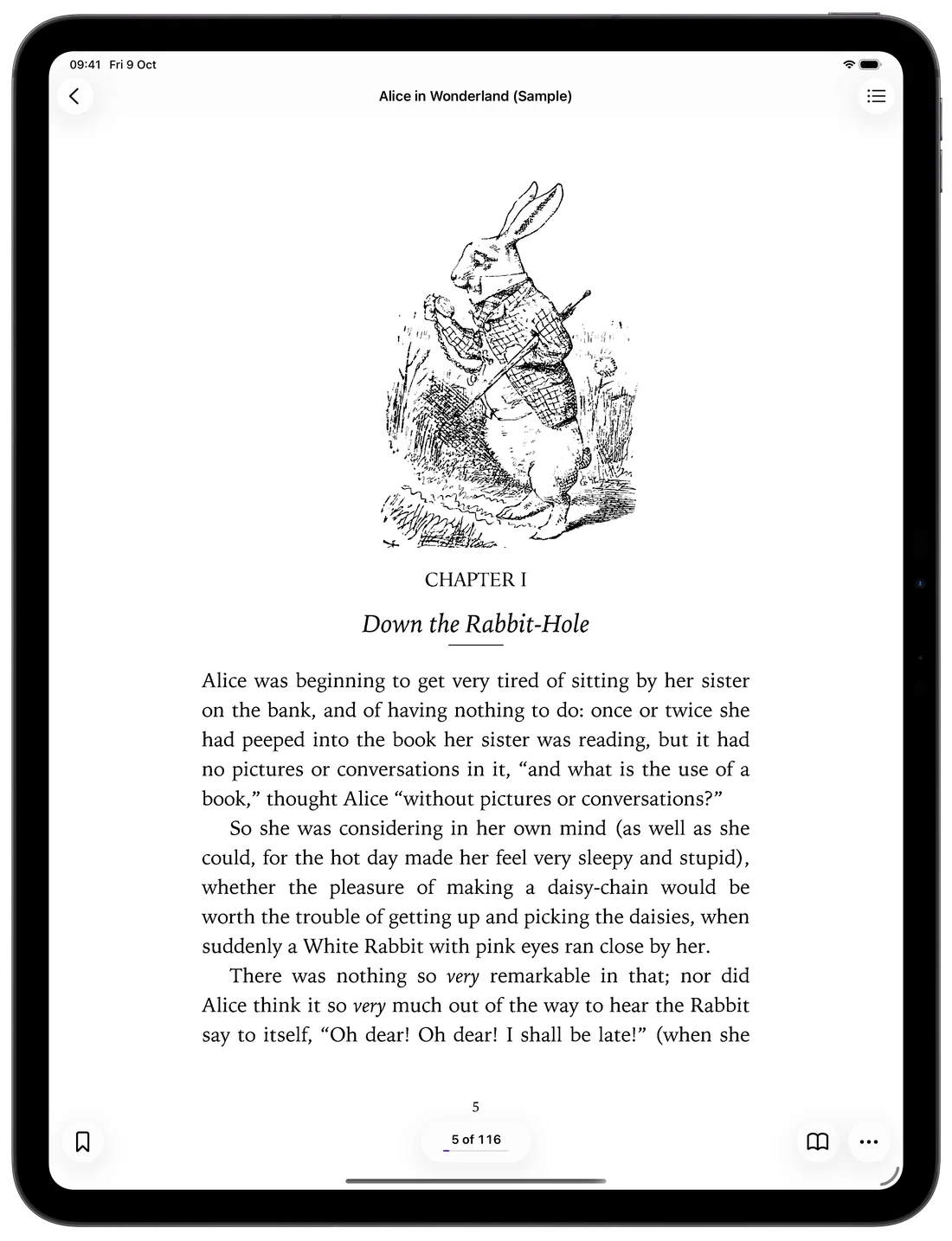
Read two pages side by side
Turn your iPad to landscape and switch on Two-Page Spread in ••• › View. Facing pages sit together, just like the printed book.
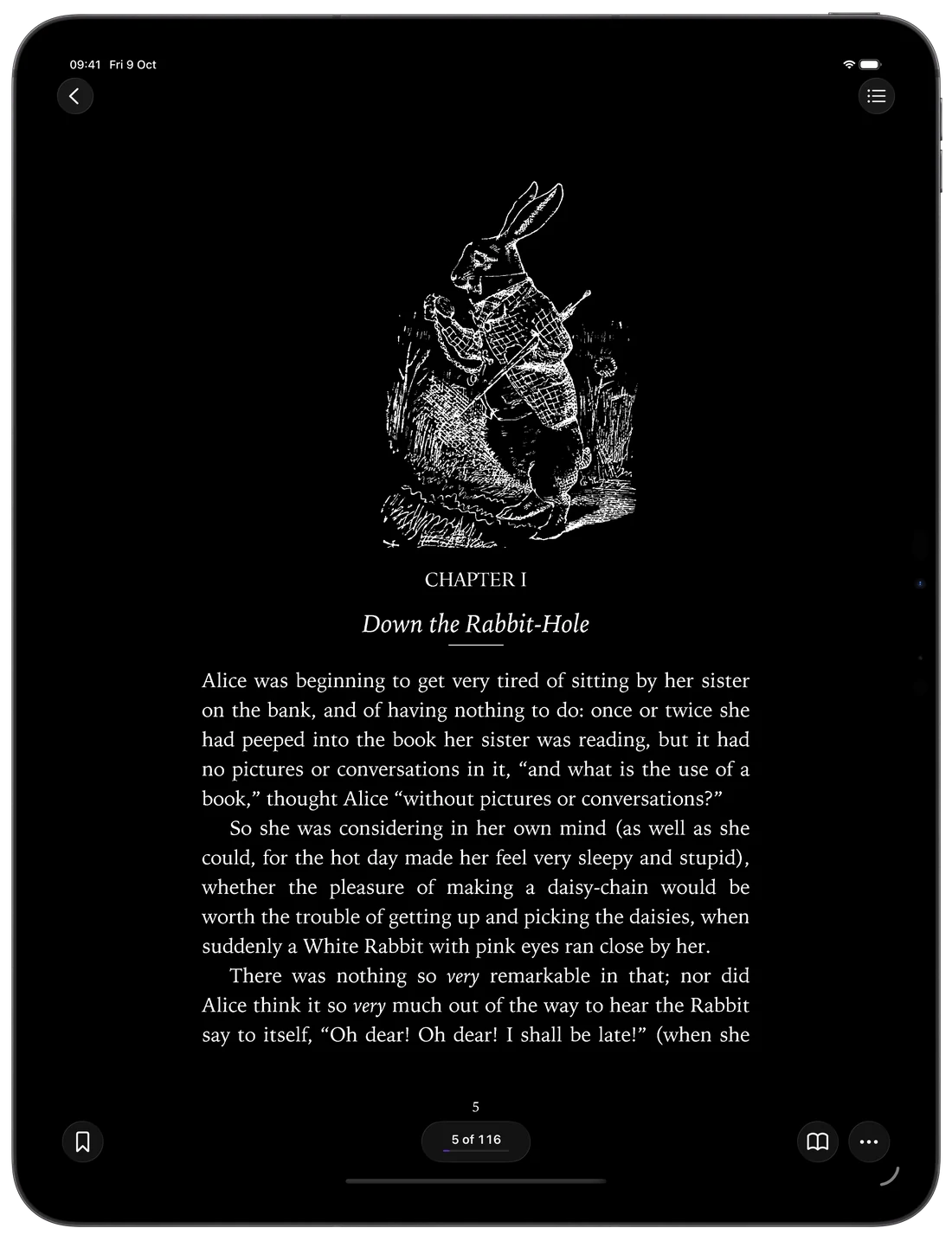
Pick a page theme for your light
Open ••• › Page Theme. Sepia and Warm are gentle for long sessions, Night and Low Light suit the dark, and Contrast and Sharpen bring faded scans back to life. Original is free; the other themes are in Pro.
Scroll or turn pages
Choose Scroll Pages in ••• › View to move through the book in one continuous scroll. If you prefer turning pages, Settings › Reader Settings lets you turn them by tapping the edges, and with Both Edges Go Forward either edge moves ahead, handy with one hand.
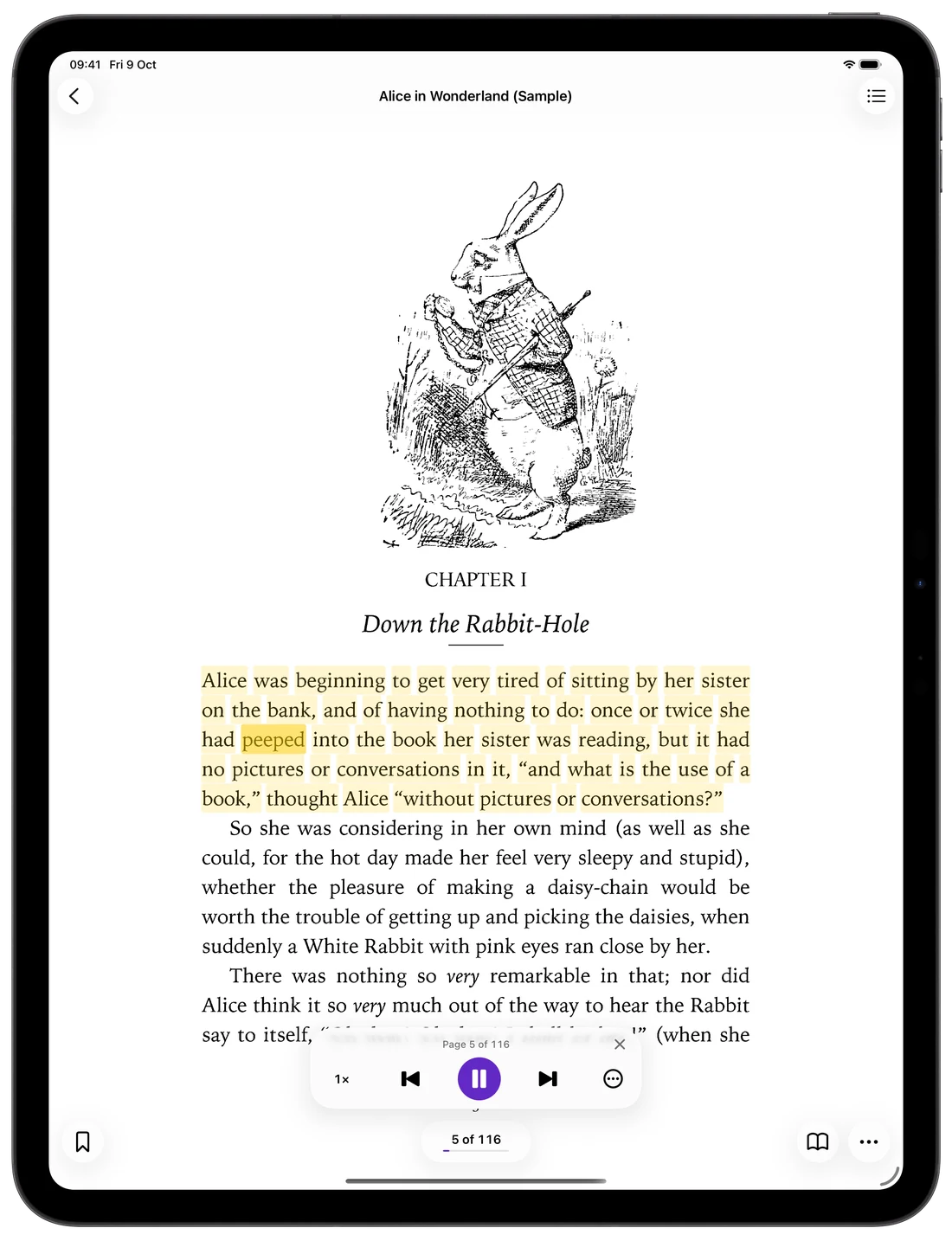
Let the book read to you
Read Aloud (Pro) reads the page out loud and highlights each line as it goes, even on scans with no text layer: the app recognises the text on the page. Pick the voice's language in Settings › Reader Settings › Read Aloud Language.
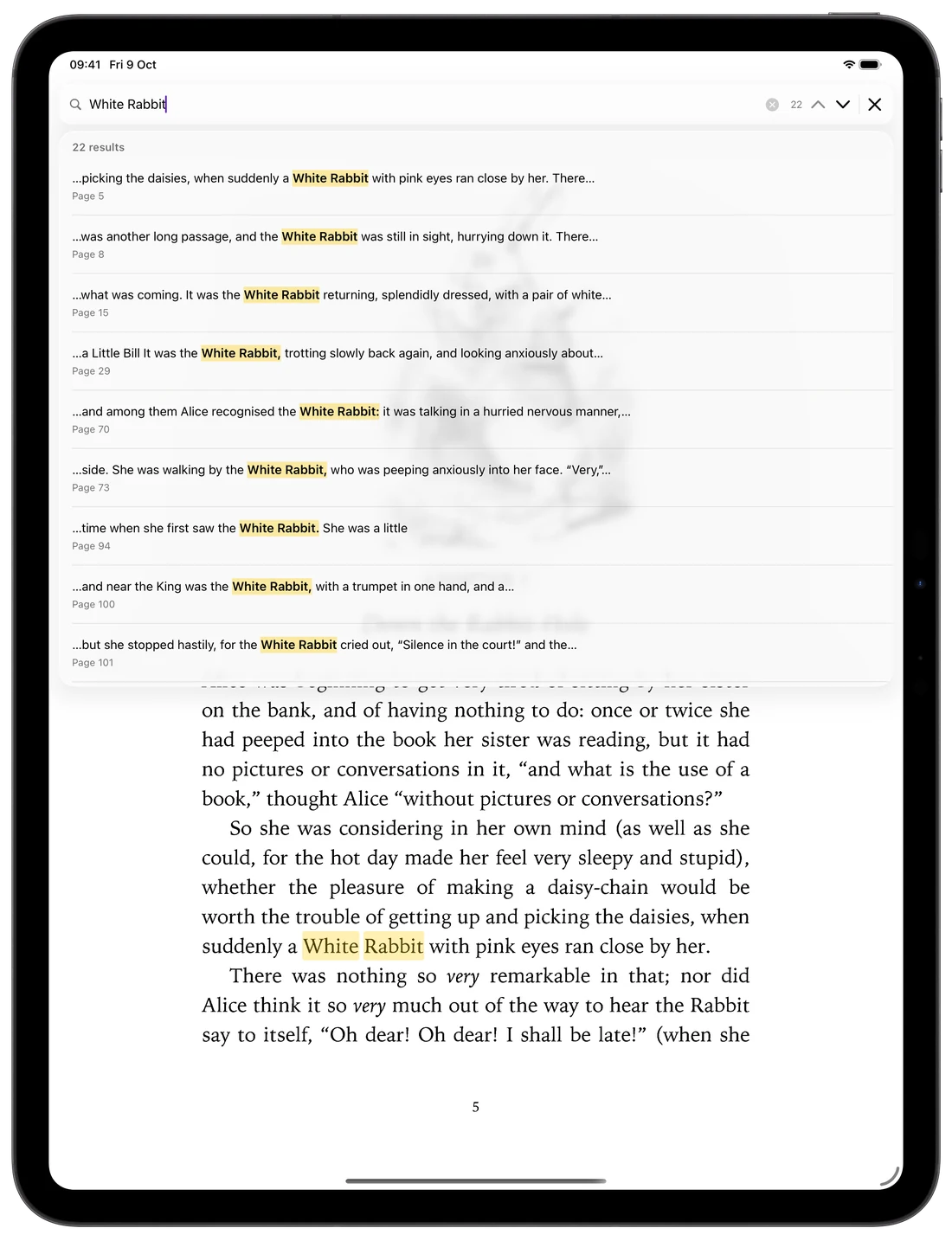
Find any word in the book
Use Search in Document in the ••• menu to find a name or term across the whole book, with every match highlighted on its page. Searching scanned books with no text layer is part of Pro.
Small things for long reading sessions
A few settings in Settings › Reader Settings help too:
- Keep Screen On stops the iPad from dimming while you read.
- Show Status Bar and Show Percentage keep the time and your progress in view.
- Bookmarks and the book's contents take you straight to the right chapter.
Common questions
- Can I read two pages at once on iPad?
- Yes. Turn the iPad to landscape and switch on Two-Page Spread in the ••• menu under View.
- How do I make a faded scan easier to read?
- Try the Contrast or Sharpen page theme. They darken the text and clean up the page without changing your file.
- Does Read Aloud work on scanned books?
- Yes. When a page has no text layer, DjVu Reader recognises the text on the page image first, then reads it aloud.
Open your first DjVu book.
Free on the App Store for iPhone and iPad.