How to transfer DjVu books from your computer to iPhone
Updated October 15, 20262 min read
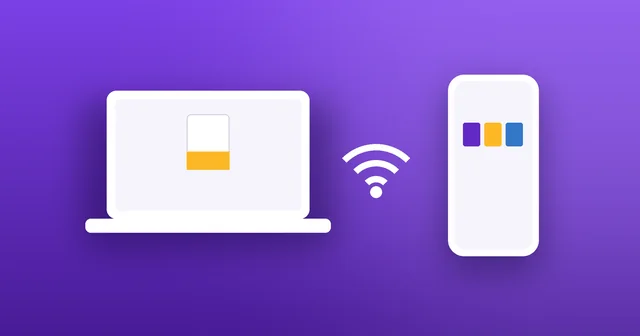
Got a folder of DjVu books on your computer? You don't need a cable, iTunes or a cloud account to get them onto your iPhone. Here's how to send them over your Wi‑Fi in a minute.
Step 1
Connect both devices to the same Wi‑Fi
Your computer and your iPhone or iPad need to be on the same Wi‑Fi network, for example your home router. Any computer works: Mac, Windows, Linux or a Chromebook, with any browser.
Step 2
Start Wi‑Fi Transfer on your iPhone
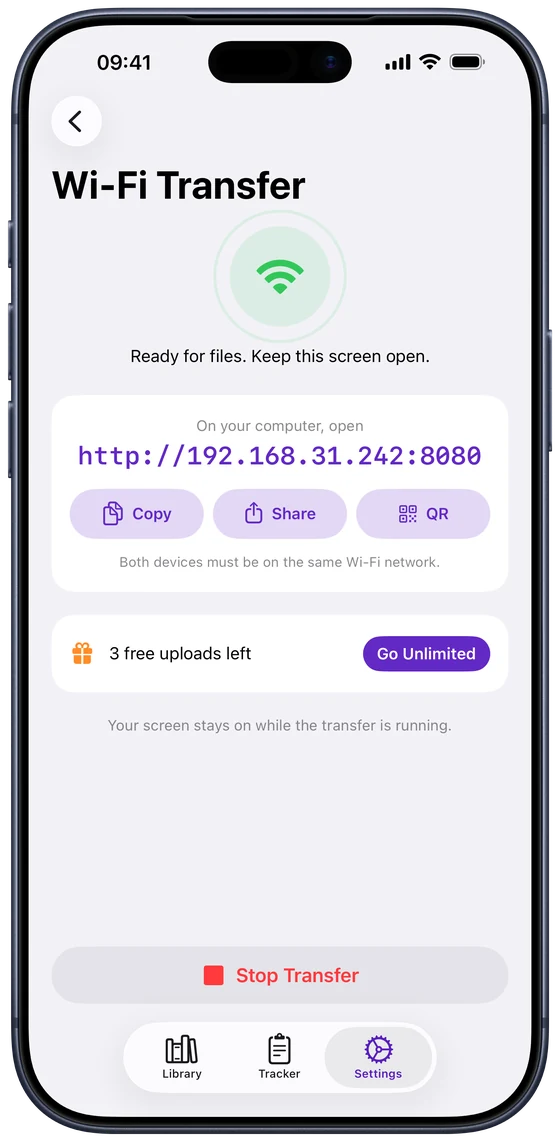
In DjVu Reader, open Settings › Wi‑Fi Transfer and tap Start Transfer. The screen shows an address like http://192.168.1.20:8080, with buttons to copy or share it, or show it as a QR code. Keep this screen open while you transfer; your screen stays on until you stop.
Step 3
Open the address on your computer
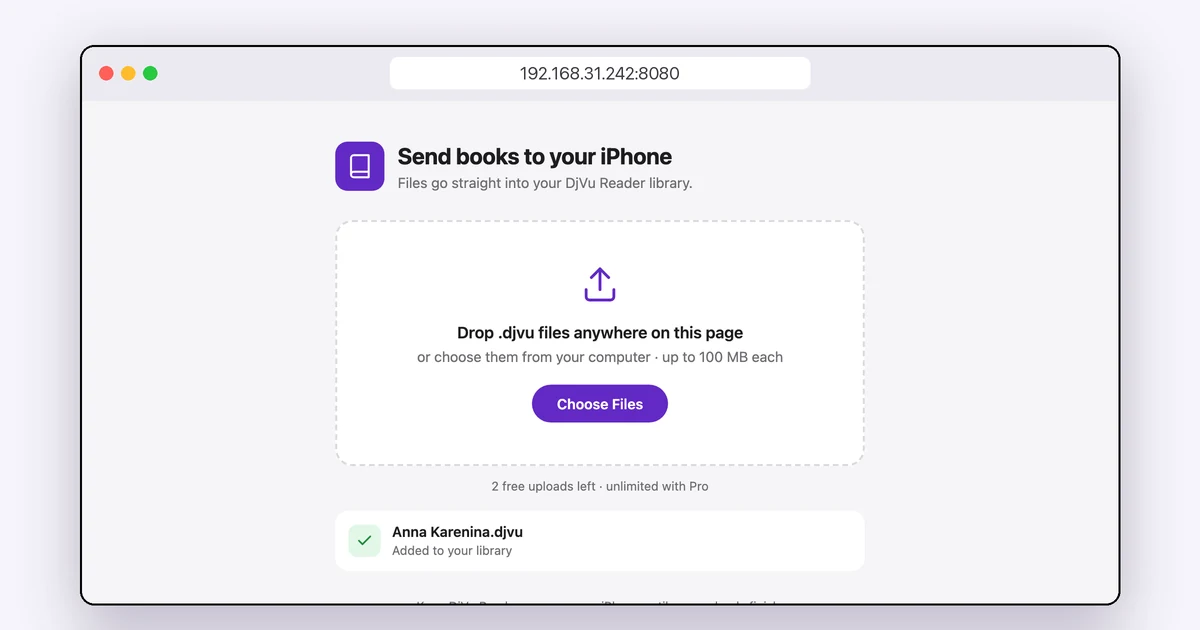
Type the address into your computer's browser, exactly as shown, including the number after the colon. A page called “Send books to your iPhone” opens.
Step 4
Drop your DjVu files on the page
Drag .djvu or .djv files anywhere on the page, or click Choose Files and select several at once. Each file shows its progress and then “Added to your library”. Files can be up to 100 MB each, and the books appear in your Library straight away.
If it doesn't connect
Most problems come down to the network:
- Same network: make sure the computer isn't on a guest network, a different Wi‑Fi band with separate names, or a VPN.
- Keep the screen open: the transfer pauses if you leave the Wi‑Fi Transfer screen or switch apps, and restarts when you come back.
- Type the full address: include http:// and the number after the colon.
- Only DjVu files: other file types are refused. A file that won't arrive may be damaged: see DjVu file won't open?
Other ways to add books
Wi‑Fi Transfer is best for many books at once. For a single book, you can also save it to iCloud Drive on your computer and open it from the Files app, or email it to yourself and open the attachment in DjVu Reader. The free version includes 3 book uploads in total; Pro adds unlimited books.
Common questions
- Do I need a cable or iTunes?
- No. Wi‑Fi Transfer works over your Wi‑Fi network, from any browser on any computer.
- Are my books uploaded to the internet?
- No. Files go straight from your computer to your iPhone over your own network; no cloud service is involved.
- Can I send several books at once?
- Yes. Drop or choose several files; they upload one after another, each with its own progress.
- Does it work on iPad?
- Yes, the same way: open Settings › Wi‑Fi Transfer in DjVu Reader on your iPad.

Open your first DjVu book.
Free on the App Store for iPhone and iPad.